CLIKVUE GROWTH HUB
How to Check Your Website for Missed Enquiries
How to Check Your Website for Missed Enquiries
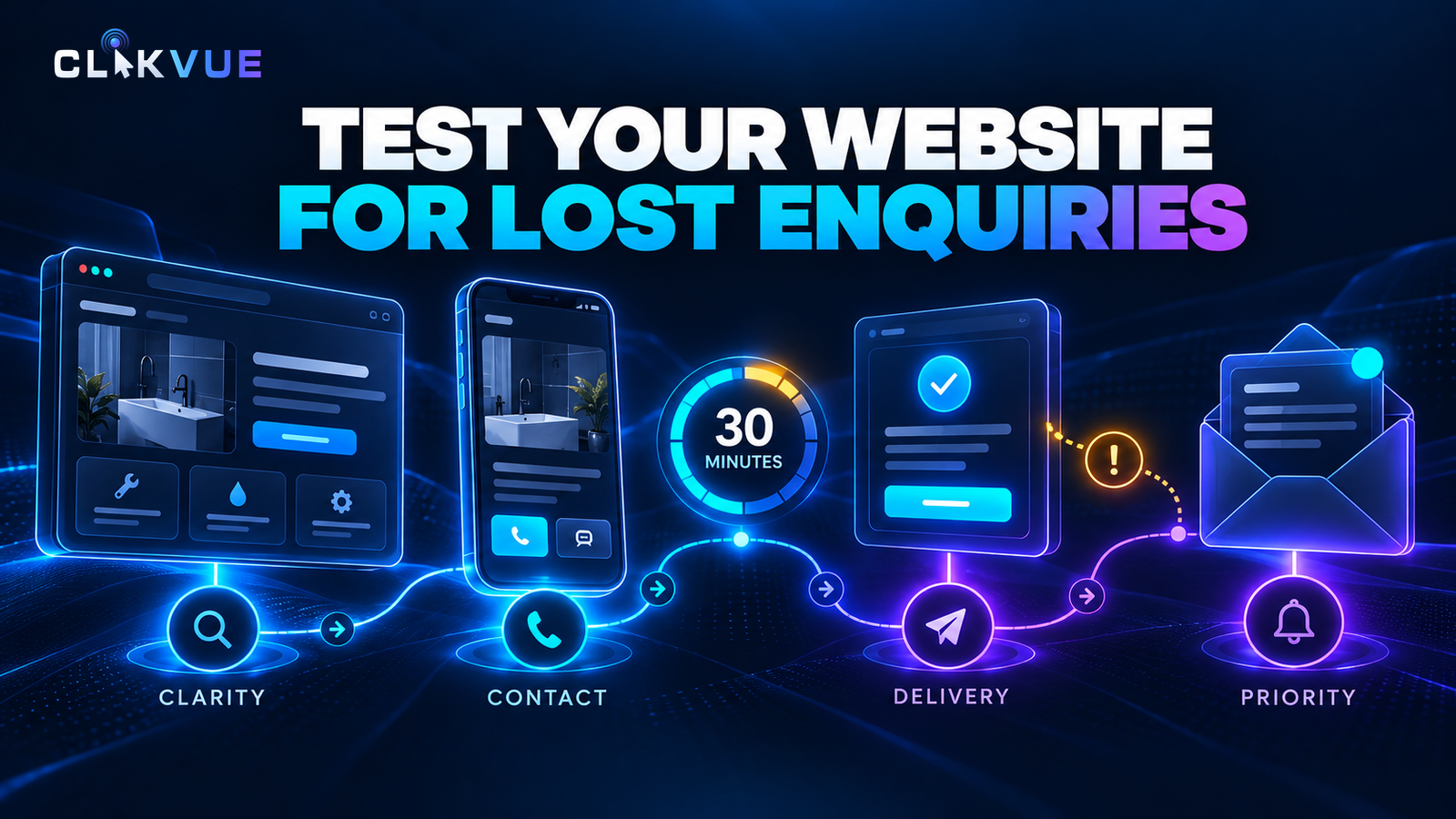
A customer presses “Send”. Your website says “Thank you”.
The enquiry still needs to reach someone who can answer it.
That handover is easy to overlook when you check your website by opening the homepage and seeing whether it looks right. This guide helps you follow one important customer journey all the way through, then leave with a clear first fix.
Allow around 30 minutes for one route. You need a phone, your public website, a notes app or paper, and access to wherever the enquiry should arrive. Use contact details you control and tell colleagues you are sending a test. The checks use free tools; normal data or call charges may apply.
Choose a service that matters to your business and its main contact method. Start with that one. Extra forms, delayed messages and repairs may need another session.
One route · one useful result
Your first pass, from page to person
- 01 0–3 min Find the route
- 02 3–8 min Try it on your phone
- 03 8–18 min Test contact and receipt
- 04 18–22 min Save speed evidence
- 05 22–30 min Choose the first fix
Approximate timings for one contact route. Finish with a checked handover and a clear next action; leave extra routes and repairs for a follow-up.
1. Start where a customer would land
Open the published website on your phone, outside the website editor. Begin on the page a customer is likely to find: a service page, for example, rather than automatically starting at the homepage.
Pick a believable situation. We will use an imaginary plumbing business in York throughout the examples: a homeowner needs a leaking tap repaired and wants to request a visit.
Without relying on what you already know about the business, check whether the page makes these points clear:
- the service available and whether it fits the customer’s situation;
- the area covered, where location matters;
- the next action and what will happen afterwards.
“Request a visit” should lead somewhere that lets a person request a visit. If it opens a general contact page, the visitor should still know how to continue.
Look for one piece of reassurance relevant to the decision: genuine examples of the work, a clear explanation of charges, a relevant qualification or what the first conversation involves. Record the missing detail that matters most to this route.
If someone can help: give them the customer situation and ask them to try. Let them choose the route before offering directions. GOV.UK’s usability-testing guidance explains how realistic tasks can reveal problems that an experienced owner misses.
2. Reach the contact action on your phone
Follow the links and menu as a customer would. Keep an eye on anything that makes you stop, guess or work around the page.
Try opening and closing the menu. Read the service information. Reach the contact action. If there is a form, tap into a field so the phone keyboard appears, then check that you can still reach the other fields and the final button.
Look for a chat bubble, cookie notice or fixed bar covering something you need. The problem may only appear while typing.
Spot the obstruction
The button is there. Can a customer reach it?
Blocked An overlay covers the action
Reachable The action stays available
Illustration only. Check your real page with the phone keyboard open too: fixed bars and chat bubbles can move or cover controls.
Make the cookie choices you would normally make as a visitor and note them if something fails. Start in an ordinary browser. A private-window check can be useful later, but it changes the conditions: Chrome, for example, blocks third-party cookies by default in Incognito.
Record the obstruction, not a general impression. “The cookie notice covers the submit button on my phone” is a useful finding. “The mobile site feels bad” leaves someone else guessing.
If the service itself is hard to understand, keep that on the list and return to our guide to creating a clear, useful service page after this test.
3. Test the contact method your customers use
Choose the route below that matches the business. You do not need to complete all three in this session.
Contact or quote form: submit, find and reply
Fill in the form with ordinary details that you control. Use a real email address you can check and a clearly labelled message. Avoid customer information or sensitive details.
Before submitting, leave one required field empty and try to continue. You should be able to find the problem, understand how to correct it and continue without unnecessarily re-entering everything else.
Recognise a useful form response
An error should help someone continue.
Unclear
Which answer needs attention? The message does not say.
Useful
The field is named, the correction is clear and the other answers remain in place.
Illustrative error states, not a working form. Try one missing required field on your own website, then correct it and continue.
Check the field names while you type. A faint hint that disappears should not leave you guessing what belongs in the box. On your phone, notice whether an email or telephone field brings up a suitable keyboard. These are useful observations to give your website provider; you do not need to edit code.
Correct the missing field, then use a message such as:
WEBSITE CHECK — [date and time]. Testing the plumbing enquiry form. No customer action needed. Please confirm this reaches the usual enquiry destination.
Submit once and wait for the result. Make a note of the time and the message label so you can trace this particular test.
Check the confirmation on the page, then look for the enquiry at the business end. That may mean an inbox, a form-response dashboard, a booking system or software used to manage customers.
After one labelled test
Find the last handover you can verify.
- 01
On the page
Look forA clear result after sending.
If it differsNo clear result? Save the visible error and ask the provider to trace the test.
- 02
Saved response, if available
Look forThe labelled message exists in the platform’s records.
If it differsCannot find or access it? Check the live page and ask who can verify the submission.
- 03
Intended notification
Look forThe expected inbox or queue receives the alert.
If it differsRecord exists but alert is missing? Investigate the recipient, filters and delivery evidence.
- 04
Person and reply
Look forSomeone owns the enquiry and can answer using its details.
If it differsNobody owns it, or the reply fails? Assign responsibility and test the reply route.
Your platform may not keep a separate saved response. Confirm how it works. Mark a stage uncertain when evidence is missing; keep the suspected cause separate.
Some websites store a form response separately from the email that announces it. Check the saved record if your platform provides one. A missing notification and a missing submission are different findings.
If an email should arrive, check its intended inbox, junk and any relevant filtered or shared folder. If the website promises an acknowledgement to the customer, check your test address too. Record a delayed message as unresolved while you investigate; there is no single arrival time that applies to every website system.
Finally, ask the person responsible to reply to your test address using the normal process. Check the recipient before sending and confirm the reply arrives. They should have the message and contact details needed to answer.
No access to the receiving system? Ask the person who monitors it to confirm the labelled test. Until then, mark that stage uncertain. The website’s success message alone does not complete the delivery check.
Telephone: check the number and the answer
Tap the visible telephone number and check the digits offered by your phone. Check any prominent floating call button separately; it may use a different link.
Opening the dialler verifies the destination, not the call handling. Arrange a short test call if practical. Confirm that it reaches the intended person or voicemail and that the response fits the website’s promise.
A page offering an office-hours callback needs an honest response expectation. A page inviting urgent calls needs a suitable route for those calls. Record any mismatch rather than adding a faster promise the team cannot meet.
Email, WhatsApp or booking: check the handover
For email or WhatsApp, check the recipient or business identity before sending a labelled test. Confirm arrival and a reply through the normal process.
For bookings, follow the service, location and availability choices. Use a test mode if one is provided. Agree any live test appointment with the business first and remove it afterwards. Stop before a payment or binding booking unless that test has been arranged.
Mark any remaining booking stage not tested. Reaching the booking provider’s page does not verify the rest of the process.
4. Save one useful speed finding
Open PageSpeed Insights, enter the exact service or contact page you tested and run the analysis. Start with the mobile result.
The report contains different kinds of evidence. Use the guide below to identify what you are reading before reacting to a score.
PageSpeed Insights · reading guide
Read the evidence before the score.
What eligible visitors experienced
Real-user performance over the previous 28 days.
Check the coverage: this page or the wider site?
What a simulated test found
A controlled Lighthouse run that can help identify performance issues.
Results can vary between runs.
No field data? There may be too few eligible samples. That does not mean nobody visits or that the page failed. This is an explanation, not an actual report.
Save the report link and one observation that relates to your phone test: perhaps a late-loading main image or content moving as you tried to tap. Leave the deeper technical diagnosis to the person who maintains the site.
A good performance score does not establish that your form delivers enquiries. If the report is still running, return to it later and keep time for your fix list.
5. Give the first fix an owner
Read your notes and give each check one result:
- Pass: you saw the expected outcome in the conditions you tested.
- Fix: you observed a specific problem.
- Uncertain: you could not verify the outcome or need more evidence.
Keep anything you did not try marked not tested.
A result and its cause are different things. You can record that no notification was visible at the time you checked without claiming to know why. That observation is still useful.
Now decide the priority.
Turn findings into action
Put the blocked enquiry first.
| Priority | What you found | Next action |
|---|---|---|
| Blocker | The main contact route cannot be completed or reaches the wrong place. | Arrange a working alternative. Assign the repair. |
| Friction | The route works, but information, controls or next steps cause confusion. | Choose the smallest useful improvement. |
| Later | Visual polish that does not affect this enquiry route. | Keep it behind issues that prevent or hinder contact. |
Uncertain? Assign an investigation. An unknown result has not passed; the priority depends on what may be affected and what the next check establishes.
Start with the problem that blocks the main route. Arrange a working alternative while it is investigated, and make sure customers can find that alternative.
Give an uncertain result an investigation owner too. “Jo to check the enquiry dashboard today” is an action. Leaving an unexplained question mark is not enough.
Send a fix brief someone can act on
Give your website provider the page, the steps and what happened. A completed example shows the level of detail you need.
Worked example · imaginary plumbing business
Show the evidence. Leave the cause open.
- Page and test
- Main plumbing service page · Tuesday, 09:15 · phone browser.
- Steps
- Completed the published form with controlled contact details and the label WEBSITE CHECK 0915.
- Observed
- Confirmation appeared. The test is saved in form responses. No notification was visible in the intended inbox or junk at 09:25.
- Next action
- Jo to check the configured recipient and delivery evidence today. Cause not yet established.
- Retest
- Send one fresh labelled test after the change. Confirm the record, expected notification and reply.
This is a fictional example, not a client result. In your own brief, add the exact URL, full date, time zone and browser.
Copy this structure into your notes for each issue:
- Page and test time: exact URL, date, time and time zone.
- Device and conditions: phone or computer, browser, connection and relevant cookie choice.
- Steps: the actions needed to reproduce the issue.
- Expected: what should have happened.
- Observed: what happened and the last stage you could verify.
- Evidence: test label, screenshot or report link, without customer information.
- Next action: priority, responsible person, due date and retest needed.
Keep the observation separate from a suspected explanation. “The test is saved in the dashboard, but no notification was visible in the intended inbox or junk at 09:25” gives the provider a useful starting point. “The website is broken” does not identify the fault.
If a result is confusing
The confirmation appears, but nobody can find the enquiry
Check that you tested the published page and the right receiving destination. Ask the provider to trace the labelled submission and any delivery logs. Some platforms treat preview submissions differently: Duda documents that preview tests can generate an email without appearing in saved site responses. Use your platform’s own guidance.
The record exists, but the notification is missing
Ask the website or mail provider to check the configured recipient and delivery evidence. Check filtered folders and who monitors the system. The cause may still be unknown even when you have identified the missing handover.
It works for you but fails for someone else
Compare the exact page, browser, device and cookie choices. Save the difference before trying more tests. One successful attempt does not erase a failure another person can reproduce.
Analytics says a form was submitted
Google Analytics form events describe interactions with a form. They do not establish that your business received the message. Keep the receipt check in the inbox or receiving system.
You want to check more than the main route
Make a follow-up list of other forms, devices and contact methods. On a computer, try reaching the main controls with Tab and Shift+Tab; check that you can see where the focus moves. Follow W3C’s Easy Checks for further keyboard, readability and form checks.
Retest the repair before closing the issue
Repeat the page and steps that exposed the fault. Check the receiving end again. If the fault involved layout, try another screen size where practical.
Record the retest date and result. Repeat the relevant checks after changing a form, inbox destination, telephone number or booking system.
Use our guide to knowing where your enquiries come from to record genuine enquiries separately. Label and exclude your own tests from that record.
This first pass cannot count past lost enquiries or certify the whole website’s accessibility, security or conversion performance. Its useful outcome is simpler: a route you have checked, an unresolved stage you can name and a clear next action.
Resources
PageSpeed Insights\ Run the free mobile performance check for the page you tested.\ View resource →
W3C Easy Checks\ Go further with preliminary keyboard, readability and form checks. These are a starting point, not a full accessibility assessment.\ View resource →
W3C Before and After Demonstration\ Explore annotated examples of accessibility barriers and repairs, including forms. This older teaching example complements current guidance.\ View resource →
GOV.UK: usability testing\ Use realistic tasks when asking another person to try your website without being guided through it.\ View resource →
Sources
Guidance checked on 17 October 2026.
GOV.UK Service Manual — usability testing\ Supports believable tasks and observing people as they try to complete them.\ View resource →
W3C WAI — labelling controls\ Explains meaningful form labels and their relationship to controls.\ View resource →
W3C WAI — user notifications\ Supports clear submission feedback and error messages that explain a correction.\ View resource →
web.dev — form attributes\ Explains suitable mobile keyboards and why placeholders should not replace labels.\ View resource →
Google Chrome Help — cookie settings\ Documents Incognito third-party-cookie blocking and possible differences in website behaviour.\ View resource →
Duda Support — contact forms\ Documents saved responses, notification settings and the exception for preview submissions.\ View resource →
Google — About PageSpeed Insights\ Defines lab and field data, the 28-day reporting period, coverage and variable test results.\ View resource →
Google Analytics — enhanced measurement events\ Defines form interaction events; those definitions do not establish receipt by the business.\ View resource →
W3C WAI — Easy Checks\ Explains preliminary accessibility checks and their limitations.\ View resource →
Recent Posts