CLIKVUE GROWTH HUB
How to Get Your Business Listed on Apple Maps and Bing for Free
How to Get Your Business Listed on Apple Maps and Bing for Free
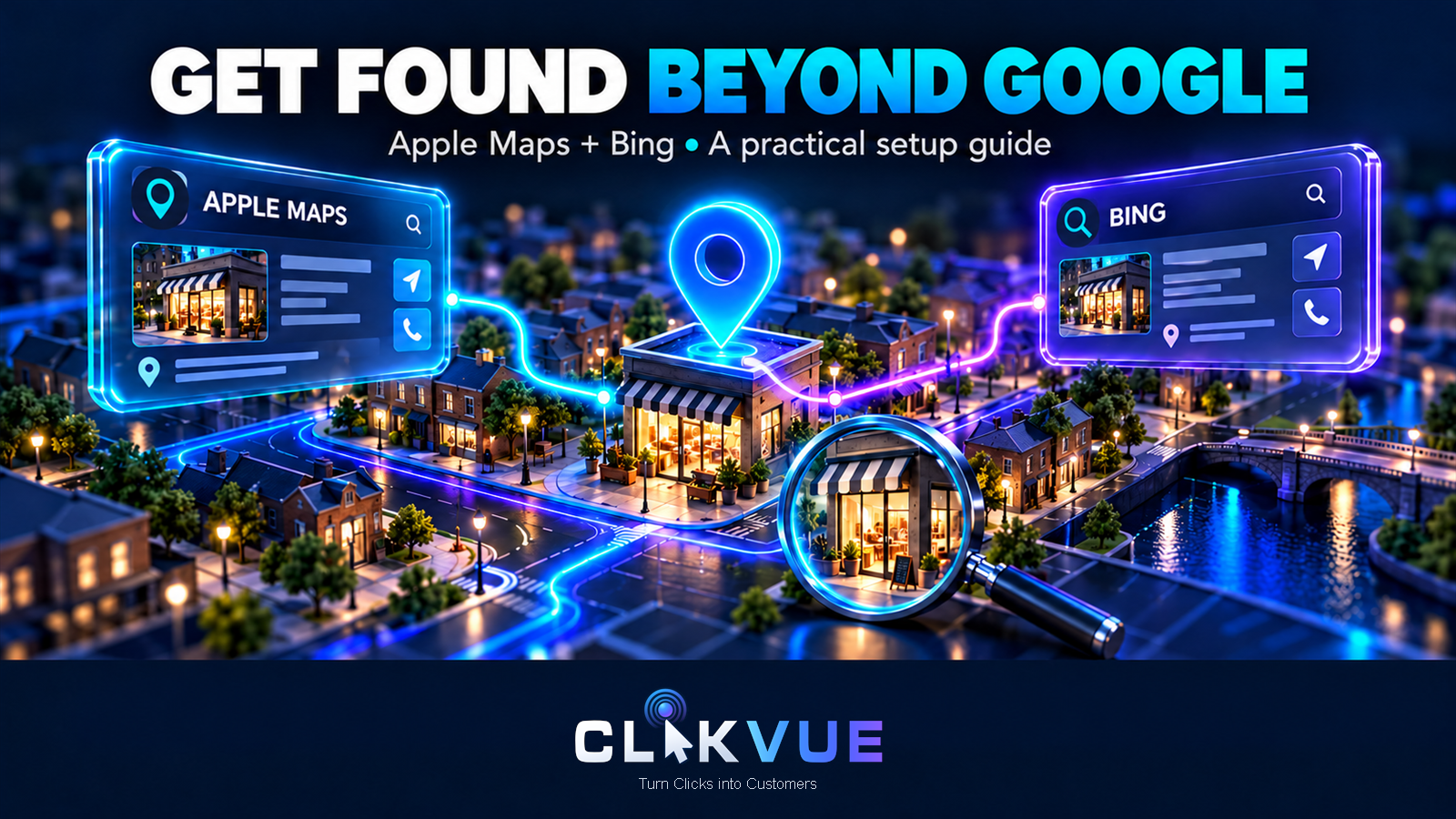
If a customer searches for your business on an iPhone, in Apple Maps or on Bing, they may see information that you did not add yourself. A listing can be missing, duplicated or built from older public data. The practical fix is to check what a customer sees, then claim or create the record you are eligible to manage.
This guide walks you through both platforms. By the end, you should have checked your public details, started or completed a Bing Places claim, and set up the right type of Apple Business presence for your business.
Suitable for: local shops, trades, salons, clinics, restaurants, offices and eligible service businesses. Online-only and home-based businesses can still create an Apple brand profile, but they should not invent a customer-facing location.
Time: about 45–75 minutes, plus platform review or verification time.
Cost: free.
Difficulty: beginner-friendly.
You need: your official business name, address or service-area details, telephone number, website, opening hours, a business email account and evidence that you control the business. Keep your Google Business Profile login nearby if you plan to import it into Bing.
Platform labels and verification choices can vary by account and business. These steps were checked against Apple and Microsoft material on 12 October 2026. Use the option shown in your account and never create a second listing simply because a review is taking longer than expected.
First, check what customers can already see
Do this while signed out or in a private browser window where practical. You want to see the public result, not only an owner view.
Check Apple Maps
On an iPhone, iPad or Mac, open Maps and search for your exact business name and town. If you do not have an Apple device, use Apple Maps on the web at maps.apple.com. Try a second search using your service and area, such as “hairdresser Stockport” or “electrician Norwich”.
Open the place card and check:
business name and primary category;
pin position and address;
telephone number and website;
ordinary and special opening hours;
whether the business is marked open, temporarily closed or permanently closed;
photos, logo and description;
duplicate or old locations.
Check Bing
Go to bing.com/maps, search for the exact business name and town, then repeat with the service and area. Open the listing and make the same checks. Also search on ordinary Bing because local results can appear there in a different layout.
Record each detail as correct, needs changing or not shown.
See what your
customers see.
Open the public result on both maps. A listing may already exist, even if you never added it.
- 01 Name & category
- Is it your real business and the right type of service?
- 02 Address & map pin
- Would directions take someone to the correct premises?
- 03 Phone & website
- Open each link. Check where it actually leads.
- 04 Hours & open status
- Check usual hours, special closures and business status.
Keep a simple record: correct / needs changing / not shown. Save the public links and any duplicates before creating anything.
If you find a duplicate, do not immediately create another record. Save the URLs or screenshots and use the platform's claim, transfer or support route. If you find a wrong pin, confirm the actual building before moving it. A pin should represent the premises, not the nearest road junction.
Part 1: claim or add the business in Bing Places
Microsoft directs owners to Bing Places for Business to add or change a business shown in Bing Maps. The portal currently supports sign-in with Microsoft, work, Google and Facebook accounts. Choose a login the business will retain if a member of staff leaves.
1. Open Bing Places and choose the right route
Go to bingplaces.com and select Get Started or Sign in. Microsoft may route parts of the experience through its newer business pages; use the Bing Places dashboard reached from the official Microsoft page.
Choose the route that matches what you found:
Existing listing: search for the business, select the correct record and claim it.
No listing: add a single business and enter the details.
Many locations: use the bulk route rather than creating branches one at a time.
Business serving customers at their locations: provide a valid address for verification, then use the available option to hide it from public results if the business qualifies. Do not use a made-up office.
2. Search carefully before creating anything
Search with the business name, postcode and telephone number. Look for old spellings and former addresses. A listing can exist even when it does not appear for your preferred service search.
Select the correct record only when the name, location and business identity genuinely match. If it belongs to another business, return to the search rather than editing it.
3. Import from Google Business Profile when the option is available
If your Google Business Profile is accurate, Bing may offer Import from Google Business Profile. Choose it, continue to Google, sign in to the Google account that manages the profile and review the permissions before allowing the connection. Select the correct location and review the import summary.
Importing is a shortcut, not a reason to skip checking. Categories do not always map neatly, addresses can be formatted differently and an imported listing can still need Bing verification. Check every field after the import. If the button is absent or the connection fails, use the normal claim or add route; availability varies.
4. Complete the important information
Use the real-world name displayed to customers, without extra keywords. Choose the most specific primary category available and only add secondary categories that describe services the business actually provides.
Complete:
valid address and, where offered, service area or address-hiding choice;
main local telephone number;
secure website URL leading to the relevant business or location page;
regular hours and special hours;
concise description of what the business does;
services and amenities that genuinely apply;
current, business-owned photographs.
For a fictional example, Harbour & Field Physiotherapy in Bristol would use its real clinic name, the clinic address customers visit, its booking number, its own website and the closest physiotherapy category. It would not rename itself “Best Bristol Physio Sports Injury Clinic”.
5. Verify the listing
Bing says verification can be offered by PIN at the business address, phone or email. The choices shown depend on the listing and the information Microsoft can confirm. Follow the method offered in your dashboard. Keep the listing details stable while verification is underway and keep any mailed PIN secure.
Verification is not the same as immediate publication. Reviews and updates can take time. If the status remains stuck, use support from inside the signed-in portal and include the listing ID and dates. Do not keep making duplicate listings.
6. Check the public result
After the dashboard says the listing is published, search again while signed out. Check Bing Maps and a normal Bing result on both phone and desktop. Confirm that the phone link, website and directions lead to the right place.
Part 2: set up Apple Business correctly
Apple Business Connect was incorporated into Apple Business in 2026. The current portal is business.apple.com. Existing Business Connect administrators can sign in with the Apple Account they previously used and choose whether to continue with that personal account for brand and location management or create an Apple Account for Work for the wider feature set.
Understand brand profiles and locations
Apple now provides a useful distinction:
A single brand is suitable for a small business or one without a physical location customers can visit. It can manage brand identity across supported Apple services.
A location represents a real customer-facing place with an address and map position. Location features include a Maps place card, location hours, directions and location-specific photos.
An online consultant or home-based designer should not create a shop location at a private home merely to obtain a map pin. They can choose the single-brand route. A clinic, salon or shop that welcomes customers at stated hours can add its real location. A trade working at customer addresses should follow the eligibility shown in Apple Business and use Apple support if the portal does not offer an appropriate public-location route.
A brand profile. A map location.
Know which you need.
Use your real business setup to choose the next step.
Brand + eligible location
Set up your brand, then claim or add the real customer-facing premises. Check the address, map pin and visiting hours.
Start with a single brand
Manage your brand identity without inventing a storefront. A brand profile does not by itself create a customer-facing map location.
Work at customers’ addresses? Check the eligibility shown in Apple Business. If the right location option is unclear, ask Apple support before adding a public address.
1. Sign up or migrate your access
Go to business.apple.com and choose Sign up now, or sign in with the Apple Account previously used for Business Connect.
For a new organisation, enter the organisation name, location and address, website if available, and the legal first and last name of the person registering. Confirm the email and phone verification codes, then accept the terms.
Apple says an organisation has 60 days to complete verification. Start promptly. Use a business-controlled email and record who holds the administrator role.
2. Verify the organisation
In Apple Business, go to Settings > Organisation > Verify Now. Apple currently requires two verification methods. Depending on your organisation, available evidence can include a business identifier, domain validation with a DNS TXT record, an associated App Store Connect app or official documents such as a business licence, lease or utility bill. Choose evidence that exactly matches the legal organisation.
Apple says review can take up to five working days and longer at busy times. Do not alter documents or submit information belonging to another entity.
3. Add or claim the brand
Go to Brands > Brand Profiles, choose Add a Brand, then add a single brand. Enter the brand name, country or region, primary category and an HTTPS website. Apple also permits a Facebook, Instagram or TikTok page where appropriate.
Choose the single-brand option if you do not have a physical location customers can visit. Upload a genuine logo only if it meets Apple's requirements. Apple reviews brand names and logos; allow for that approval rather than expecting an instant change.
4. Add a real customer-facing location
If customers visit your premises, go to Brands > Locations and select Add. Search the location name first.
If the place already exists, select it and follow the claim route.
If it does not, choose Add a new location with this name.
Enter the address and move the map marker so it sits over the correct building. Add the display name, primary category, open status, telephone number, website and hours. Associate the location with the correct brand.
For an existing Maps place, Apple may offer telephone verification using the number it already has on record. If you do not recognise that number, stop and contact Apple Business support. If a location is already managed by somebody else, request a transfer and provide evidence rather than opening a duplicate.
5. Improve the place card after verification
In Brands > Locations, open the location and check its attributes. Apple expects the address to be the address on the business website and the one customers use to find the location.
Add useful, current photographs through the location's Photos area. Apple says location photos should show that specific location and meet its quality and authenticity standards. Photos are reviewed, can take up to three working days and must not be AI-generated, watermarked, text-heavy or stock imagery. Add accurate captions and alt text. A cover photo has separate size and crop requirements, so preview it carefully.
Do not upload a generic promotional graphic as a location photo. An exterior showing the entrance, an interior showing what customers can expect and a clear service environment are more useful.
Optimise both listings without stuffing them
Consistency means the same underlying facts, not blindly identical wording in every field.
Make the details agree.
Customers should reach the same business wherever they find you. Compare the public details side by side.
Apple Maps · Bing Maps
| Detail | Your website | Apple Maps | Bing Maps |
|---|---|---|---|
| Public name | Your real business name | Same public name | Same public name |
| Phone | Your main contact number | Same working number | Same working number |
| Website | Relevant HTTPS page | Correct destination | Correct destination |
| Visiting details | Real premises & visiting hours | Accurate address & hours | Accurate address & hours |
Keep the facts consistent. Use the real name, working contact details and accurate hours, including special closures.
Allow for platform differences. Category labels and formatting can vary. Choose the closest accurate option.
Work through these details:
Name: use the real public business name.
Category: choose the closest primary category; do not add unrelated categories for reach.
Contact details: test the phone number and website from a mobile.
Address and pin: match the real premises and directions.
Hours: include special closures and appointment-only arrangements accurately.
Description: state the service, customer and area plainly; avoid unverifiable “best” claims.
Photos: use recent, owned images that set accurate expectations.
Website: link to the most relevant, secure page and check it loads.
If one platform will not accept a change, check the public sources it may compare—especially the website and other major listings. Do not force consistency by making the correct source wrong.
Troubleshooting common problems
The listing is already claimed.
Use the transfer or access process. Gather company registration information, a bill or lease, website-domain control and photographs of permanent signage where relevant.
The verification option is not convenient.
Platforms decide which methods to offer. Do not create another record to obtain a different method. Use official support.
A home address is visible.
Review the address-hiding or service-business controls offered in Bing. For Apple, confirm whether you created a location when a single brand was the correct route.
Changes are approved but not visible.
Recheck after the stated review period, search while signed out and capture the public URL. Escalate one well-documented case rather than submitting repeated edits.
The business is online-only.
Bing requires a valid address and may allow qualifying businesses to hide it. Apple specifically supports a single brand for businesses without a physical customer location. Neither point justifies inventing a storefront.
Your completion checklist
☐ Searched the exact name and a service-plus-area phrase on Apple Maps and Bing Maps.
☐ Recorded wrong, missing and duplicate details.
☐ Claimed or added the correct Bing listing.
☐ Used the Google import only after checking the Google profile.
☐ Completed the Bing category, phone, website, hours and address/service details.
☐ Started or completed the offered Bing verification.
☐ Signed in to Apple Business and started organisation verification.
☐ Chosen a single brand or a customer-facing location honestly.
☐ Claimed or added the correct Apple brand/location without creating a duplicate.
☐ Checked photos, hours, contact details and map position.
☐ Scheduled a signed-out public check after review.
Approved? Check it as a customer.
The dashboard is only part of the story. Make sure the public listing works too.
- 01
Finish verification
Complete the method offered in your account. Keep access details somewhere safe.
- 02
Allow for review
Follow the platform’s stated review period. Keep the same record while you wait.
- 03
Test the public result
Search while signed out. Open the listing on a phone and check the live details.
Set a quarterly reminder. Recheck after a move, rebrand or hours change.
Ticks are temporary. Keep your own record.
Useful resources worth saving
Keep these four links with your listing notes rather than searching for them again each time:
Bing Maps — use this for the signed-out public check before and after a Bing edit.
Bing Places for Business — use this to claim, create, verify and maintain the Bing listing.
Apple Maps on the web — useful when you need to check the public place card without an Apple device.
Apple Business — use this for organisation verification, brand profiles and eligible locations.
What to do next
Once your listings are approved, check what customers can actually see. Test the phone number, website and directions, then set a quarterly reminder to review your details. Check sooner if your address, contact information or opening hours change.
Being listed does not guarantee a particular ranking, number of views or enquiries. It gives you a useful foundation to build on.
Next, check the page your listings send people to. Does it clearly explain your services and the areas you cover? Does it answer the questions customers ask before getting in touch? Is making an enquiry straightforward on a phone?
If you want to take this further, Clikvue can help you build a practical SEO and answer engine optimisation (AEO) strategy. This brings together your visibility in search engines and how clearly your content answers questions people ask through search and AI tools.
We’ll look at your website, the services you want to be found for and the customers you want to reach, then work with you to decide what deserves attention first.
Help more customers find and choose your business.
Clikvue helps small businesses improve their SEO, local visibility, AI search presence and websites. We’ll work with you to identify what’s holding you back and build a practical strategy for getting found, building trust and turning more visits into enquiries.
Not sure where to start?
Take our free Growth Score assessment for a clearer picture of how easily customers can find, trust and contact your business.
Want to talk it through?
Book a free meeting to discuss your business, what you’d like to improve and how we could help.
Resources
Free Clikvue Growth Score\ A practical next check for visibility, trust and conversion gaps.\ View resource →
Bing Maps\ Check the public Bing result before and after edits.\ View resource →
Bing Places for Business\ Claim, verify and maintain the Bing listing.\ View resource →
Apple Maps on the web\ Check the public Apple Maps place card.\ View resource →
Apple Business\ Manage verified brand and location information.\ View resource →
Sources
Platform and policy guidance checked on 12 October 2026.
Bing Places for Business\ Claim, complete and verify a listing; address and verification overview. (Microsoft).\ View resource →
Add and manage your business listing\ Microsoft directs business changes to Bing Places. (Microsoft Support).\ View resource →
Sign up for Apple Business\ Current sign-up and two-method organisation verification. (Apple Support).\ View resource →
Brand identity attributes\ Single-brand route for a small business or no physical customer location. (Apple Support).\ View resource →
Add a location in Apple Business\ Add or claim a location and phone verification. (Apple Support).\ View resource →
Photo and text standards\ Current location-photo standards and review. (Apple Support).\
View resource →
Recent Posts